6-Step Playbook to Build Client Portals Effectively
Most prep centres confuse better communication with more communication. If the truth about orders, shipments, tracking, and payments lives across sheets and email, every “quick check” becomes a scavenger hunt. Clients keep asking because the answers are not visible where they expect them.
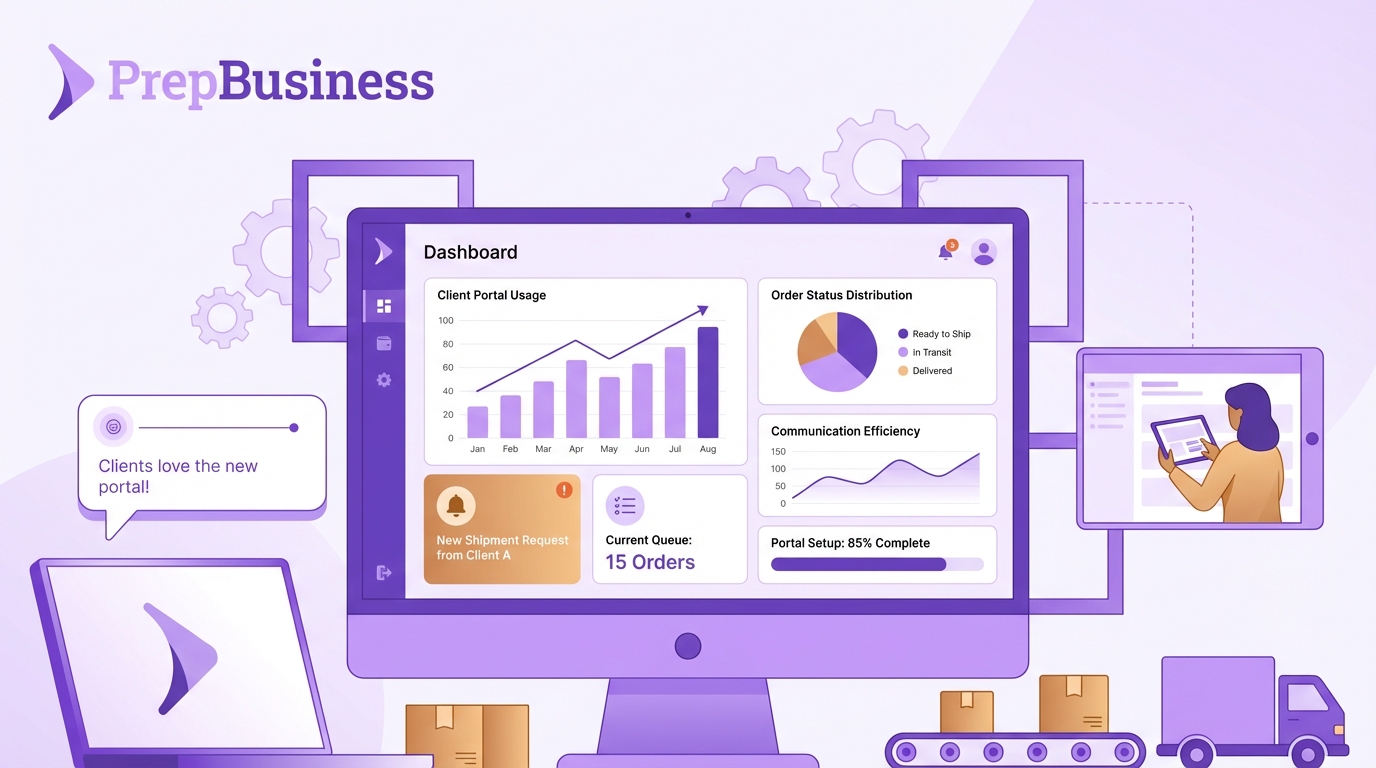
A client portal only stops status chasing when it reflects the same system your team uses to run the floor. That means you design the portal around live operational data, not around reports you prepare after the fact. Make the system do the talking so your team can move shipments, not messages.
Key Takeaways:
- Make one system the single source of truth, then let the portal mirror it
- Surface only the few client signals that prove progress and completion
- Tie payments to shipments so month‑end becomes export, not investigation
- Quantify the inbox tax to win time, budget, and focus back for the floor
- Standardize a short status taxonomy with clear triggers to keep data fresh
- Use scoped portals so each client sees only their own shipments and tracking
Portals Fail When They’re Not The System Of Record
Decide what the portal must prove
A portal that pulls from a spreadsheet or an email archive is a façade. It still forces your team to translate the “real” status into something presentable. Start by making the operational hub the source of truth for orders, shipments, inventory states, and tracking. The portal is simply a window into that system. Use views that match your live workflow, such as the boards you use to organize shipments, so what clients see is what staff use.
Identify the few signals clients really need
Three questions dominate inbound messages: received, in prep, and tracking. Pull a sample of emails and you will find these patterns. Map each question to a canonical field inside the shipment record and keep that field visible in the portal. Combine status with the proof that ends debate, for example the tracking number tied to the shipment, and inventory state clarity from track inventory. The result is a portal that answers questions without adding columns or maintenance.
Set expectations during onboarding
Make the portal the default from day one. In your welcome call, show where to see received, in prep, and dispatched, and where tracking appears inside the shipment. Say it plainly: “Live status is in your portal.” Add a short reminder line in any occasional emails that points clients back to the portal for current state. Do not promise ad hoc updates that invite more back‑and‑forth. The expectation shift is part of the product.
The Real Problem Behind Status Emails
Trace the scavenger hunt causing communication debt
Walk a shipment through your current flow. If answering “Is it out yet?” requires hopping between a shared sheet, Seller Central, a courier page, and your inbox, the problem is fragmented truth, not messaging technique. Consolidate the record so receiving, prep, and dispatch update the same shipment object as they work. When you create shipments centrally and keep everything attached, each role and every client sees the same facts.
Design for prep‑centre realities, not generic warehouses
Real prep work looks like intake, count, prep, label, pack, and dispatch. Software should match those steps so updating status is part of doing the work, not a side task. When stages mirror the floor, signals stay fresh without extra effort. That alignment is what makes the portal trustworthy. Staff move items forward, the system advances statuses, and the portal reflects it in real time.
Make billing part of the same record
Disputes and end‑of‑month hunts start when payments and services sit outside the shipment. Tie charges and payments directly to shipments so the portal shows the work and the bill together. Use a charges model that mirrors services performed, and keep that visible next to the shipment details via charges and billing. When a client asks about an invoice, the proof is already there.
The Hidden Cost Of Status Chasing
Do the math for your floor
Run the numbers. If you process 100 shipments per week and get two status checks per shipment, that is 200 questions. At three minutes to confirm and reply, you spend 600 minutes, which is 10 hours, on pure admin. Track it for two weeks. Put names and labor rates to those hours. Cost is what earns attention and justifies the shift to a client‑visible model.
Model interruption and error costs
A “quick check” breaks concentration and triggers context switching across tools. It also invites contradictory answers when data is stale or duplicated. Count the rework from mis‑keyed tracking and sheet version drift. Record the time you spend on escalations caused by confusion. Use that baseline to set a target for fewer messages and fewer corrections once the portal reflects live shipment data.
Connect the inbox tax to billing drift
Status chasing spikes at month‑end when proofs and payments are separate. The team hunts for “what shipped vs. what invoiced,” clients question charges, and reconciliation drags. Measure disputes and reconciliation time now, then watch the drop when payments sit next to shipments and clients can self‑verify. Share specific error reductions, and support the process rigor with resources like authorization update and the way you present totals using charge breakdown.
What A Quiet Inbox Does For Your Floor
Picture the calm version of the day
You arrive to a floor lead working from one live board. Receiving marks items, prep advances stages, dispatch records tracking inside the shipment, and clients check their portal. Your team moves shipments forward instead of moving information around. The noise is lower, so the pace feels better. The work is the message.
Reduce risk and frustrating rework
Visibility cuts the most common error cascades. Stale counts shrink when the inventory view is live. Missing tracking stops when numbers live with shipments, not in drafts or detached sheets. Mismatched invoices fall away when charges sit next to services performed. That combination reduces escalations and the second‑guessing that distracts your most capable operators.
Set a clear client promise
Make a simple promise and keep it: “You will always see what is received, what is in prep, and what is shipped, with tracking, in your portal.” Put a one‑line reminder in any one‑off emails that points clients back to the portal. Over a few weeks the habit shifts. The portal becomes the reflex, and the inbox stops being the status dashboard. Reinforce this with clear displays of tracking inside shipments using shipping tracking and state clarity from track inventory.
A Six‑Part Build That Makes The System Do The Talking
Step 1: Map stakeholder journeys to the few answers they need
List the top questions by frequency across clients and internal roles. Map each to a specific state and field in your system. “Received?” maps to received quantity and timestamp. “In prep?” maps to the current stage and who touched it last. “Dispatched?” maps to date, cartons, and tracking. Every common question should have a canonical answer tied to the shipment and visible in the portal.
Step 2: Define a crisp status taxonomy with canonical triggers
Keep the vocabulary short and observable. Use states like Received, In Prep, Ready to Ship, and Dispatched. Decide who advances each state and the event that triggers it. For example, dispatch records tracking inside the shipment, which moves the status to Dispatched. The fewer and clearer the states, the easier it is for staff to keep signals current and for clients to understand what they are seeing.
Step 3: Design the data model as the single source of truth
Center the model on shipments. Attach orders, SKUs and FNSKUs, counts, carton details, and tracking to that object. Keep inventory states visible and current in a single view. Store payments and service charges alongside the shipment so billing reconciles itself. This is the backbone that powers portal trust and fast month‑end, and it starts with how you create shipments.
Step 4: Implement scoped authentication and multi‑client access
Security is what makes transparency safe. Enforce account‑scoped portals so each client authenticates to see only their shipments and statuses. Internally, grant team‑based logins and permissions aligned to roles on the floor. Use role guidance from user permissions to keep access tight. As you add accounts, this separation prevents cross‑contamination and keeps support load flat.
Step 5: Use UX signals and light reminders instead of manual updates
Design the portal to show the current stage, a last updated time, cartons and tracking tied to the shipment, and a short activity trail. Avoid sending notifications for every change, which creates more support. If you email occasionally, add a footer line that reminds clients where to see live status. Review exceptions weekly, like stuck statuses, so the system stays trustworthy.
Step 6: Drive adoption and measure query reduction
Kick off with a quick walkthrough and a first login prompt for every client. Place the portal link in email signatures and on invoices. Track three KPIs for six weeks: status emails per 100 shipments, average response time to status questions, and reconciliation hours at month‑end. Aim for a steady decline, and share the wins with your team so the habit sticks.
How PrepBusiness Powers Client‑Visible Portals And Billing
Centralize orders, shipments, inventory, and tracking
PrepBusiness gives prep centres a single operational hub where orders, shipments, inventory states, and tracking live together. Create shipments early, attach order details and SKUs, and record tracking at dispatch inside the shipment. Inventory status stays current in one view that mirrors how the floor runs, which feeds a portal clients can trust. You can model your live boards with organize shipments so the portal reflects exactly what the team uses.
Expose live status to each client, securely
Each customer gets a dedicated, account‑scoped portal. Data separation by client is built in, so every account sees only its shipments and statuses. As you grow your roster, this containment prevents cross‑account noise and keeps support under control. Setup is straightforward using account details and role assignments that match your floor.
Tie payments to the work performed
PrepBusiness keeps financial records next to the work performed. Charges and payments sit inside the shipment record, which makes invoices accurate by construction. Month‑end turns into exporting what the system already knows, shrinking reconciliation and cutting disputes. Use shipment services and charges linked to shipments to show what was done and what was billed in the same place.
Scale confidently with multi‑client management
Remember that weekly inbox tax and the reconciliation headaches. PrepBusiness removes that burden by pairing client‑visible portals with a prep‑centre‑tuned workflow. Add new customers without chaos, assign shipments and updates per account, and keep communications organized from the start. Teams ramp faster because the software mirrors intake, prep, label, pack, and dispatch. The inbox gets quieter without adding headcount, and the work moves more quickly.
What this means in practice
PrepBusiness replaces copy‑paste routines with a single source of truth that does the talking for you. Staff update shipments as they work. Clients see progress and tracking in their portal. Payments sit next to services, which ends the month‑end mismatch hunt. The transformation is tangible: fewer messages, fewer errors, faster cash, and a calmer floor.
Conclusion
Client portals do not end status chasing on their own. They end it when they mirror a system that is already the source of truth for orders, shipments, tracking, and payments. Build around a short, observable status taxonomy and a shipment‑centric data model. Keep access scoped by client, and teach the habit during onboarding.
PrepBusiness makes that operating model practical by centralizing the work and exposing it securely to each client. The payoff is easy to measure: hours back from the inbox, cleaner handoffs, and invoices that match reality. When the system does the talking, your team gets to do the work.
Frequently Asked Questions
How do I set up a client portal with real-time data?
To set up a client portal that shows real-time data, start by ensuring your operational system is the single source of truth. You can use PrepBusiness to connect your order and shipment data directly to the portal. This way, when clients log in, they see the same live information your team uses. Make sure to customize the portal views so they reflect your workflow. This helps avoid confusion and keeps everyone on the same page.
What if my clients keep asking for updates?
If clients keep asking for updates, it’s a sign your portal might not be providing the information they need. Review the signals you’re showing in the portal. You can use PrepBusiness to identify the key questions clients typically have, like order status or shipment tracking. By mapping these to the right fields in your shipment records, you can ensure clients get the answers they want without having to reach out.
Can I customize what clients see in their portals?
Yes, you can absolutely customize what clients see in their portals! With PrepBusiness, you can create scoped portals that only show each client their own shipments and tracking information. This helps keep everything organized and ensures clients aren’t overwhelmed with data that doesn’t pertain to them. Just set up the appropriate permissions and select the data you want each client to access.
When should I update the status shown in the portal?
You should aim to update the status in the portal as soon as there’s a change in your operational data. With PrepBusiness, you can streamline this process by tying status updates directly to your workflow. Typically, updating the portal after every significant event—like a shipment being dispatched or received—helps keep clients informed and reduces the number of status inquiries.
Why does my client portal feel disconnected from operations?
If your client portal feels disconnected from operations, it’s likely because it’s not pulling data from your main system. To solve this, use PrepBusiness to connect your portal with your operational hub. This way, the portal acts as a live window into your operations, showing clients up-to-date information. Make sure to align the data fields in the portal with those in your operational system for better consistency.